Client overview
Client overview
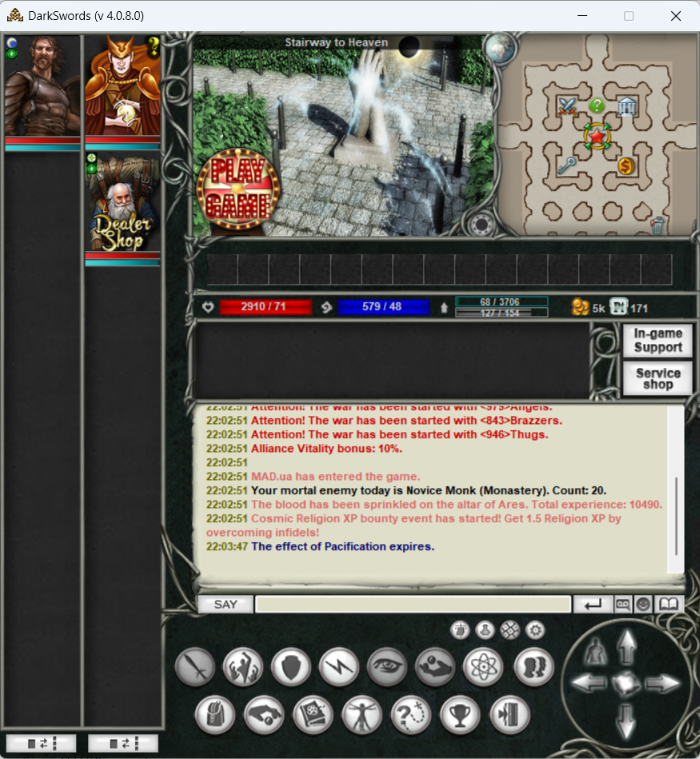
The client's main window opens first. For convenience you can open the large map window by pressing  (double-click the map), the chat window by pressing
  (or double-click the chat) and inventory by pressing
  .
.
Client controls
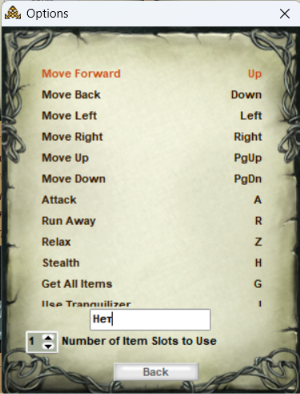
— are done with the mouse and keyboard. To control the client efficiently, you can set hotkeys.
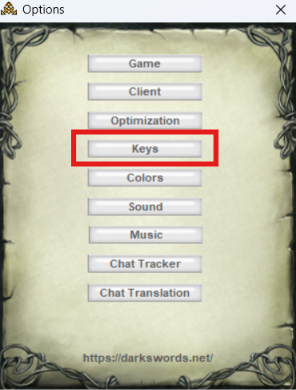
To open the control menu, press "Options" (hotkey "O").
The action bar and the world-movement bar are at the very bottom of the main game screen. Control buttons and movement buttons can become inactive when they cannot be used in a given situation; then control buttons stop highlighting when you hover the mouse, and a movement button disappears from the screen if there is no exit from the location in that direction.
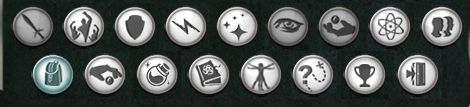
| Buttons | Function |
 |
«Attack» is used to attack a mob or a player; you can also attack with a double-click. See Combat system |
 |
"Party" is used to open, close, join and leave a party. See Party |
 |
"Protect" is used to protect another character in combat |
 |
«Aggressive Mode» when this mode is on, your character starts attacking not when you press "Attack", but as soon as you select a character or monster in the list. Used carelessly, you can get Outlaw status. See |
 |
"Effects" opens a window with the list of active effects. See |
 |
"Look" — select another character next to you (a green frame appears), press "Look", and chat shows information about the chosen player and a window with their equipment opens. |
 |
"Trade" — to trade, select a player and press this button; the trade window then opens. See Trade |
 |
«PowerUp» turns use of catalysts and grindstones on/off. See |
 |
«Chat» opens the chat window. See Chat window |
 |
"Inventory" opens the inventory window. See Inventory |
 |
"Take all" is used to pick up items from the ground (including player corpses). If you are in a peaceful location, picking up a player corpse gives you Outlaw status. See |
 |
"Recipe book" opens your learned recipes. See |
 |
"Magic" opens the list of magic skills available to you. See Magic |
 |
"Parameters" opens a window with all of your character's stats. See |
 |
"Quests" opens a window with the list of quests you have taken. See Quest walkthroughs |
 |
"Achievements" opens a window with the list of available achievements. See |
 |
"Enter" is available in certain locations you can "enter". For example on the star, at an Inn, a shop, and so on. |
Map window
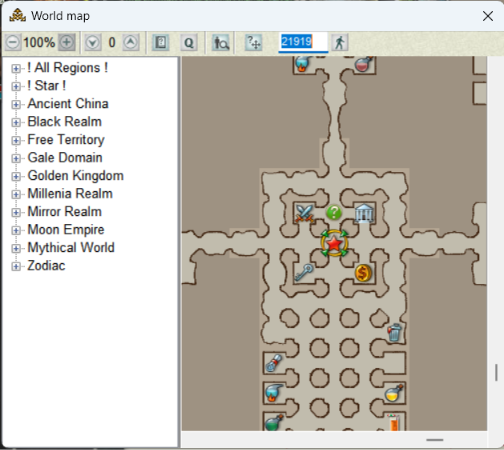
 |
Display scale. Ranges from 15% to 100% |
 |
View levels (the so-called "floors") |
 |
Region index with automatic route plotting (when possible) |
 |
Plot a route to the tracked quest (when possible) |
 |
Turn player tracking on/off |
 |
Turn map centering on the character on/off |
 |
Field to enter a destination location for route plotting, and a button to walk to the entered point (when possible) |
- Open map
By default the map is closed; to open it, go to Options
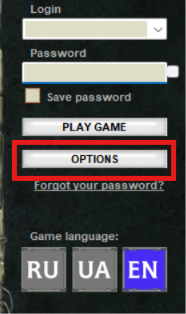
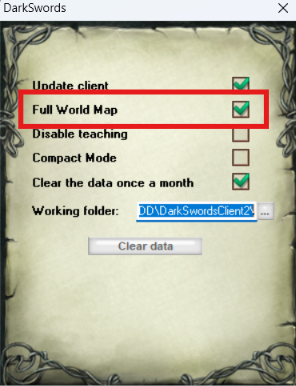
- Legend
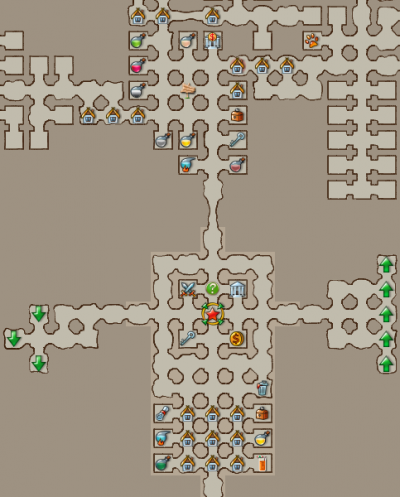
 |
Stairways to Heaven |  |
Inn |  |
Bar |
 |
Alchemy shop |  |
Store |  |
Artefact Shop |
 |
Emerald Shop |  |
Ruby Shop |  |
Mogash Shop |
 |
Dump | Scribe Shop |  |
Bank | |
 |
Laboratory | Guild | Religious guild | ||
 |
Artefact Alchemist |  |
Palladium Shop |  |
Tournament shop |
 |
Private shop or Exchange |  |
Pet Guild | Arena | |
 |
Dock |  |
Ship |  |
Quest mob (NPC) |
 |
Your character |  |
Other characters |  |
Place of your last death |
 |
Route point | Up\down | Altars |
Chat window
Before you start talking, read the Chat Rules. Some effects can scramble what you type (the "Tipsy" and "Dogs Distemper" effects) or send your messages to public chat ("Inadequacy").
The main chat window when it is open:
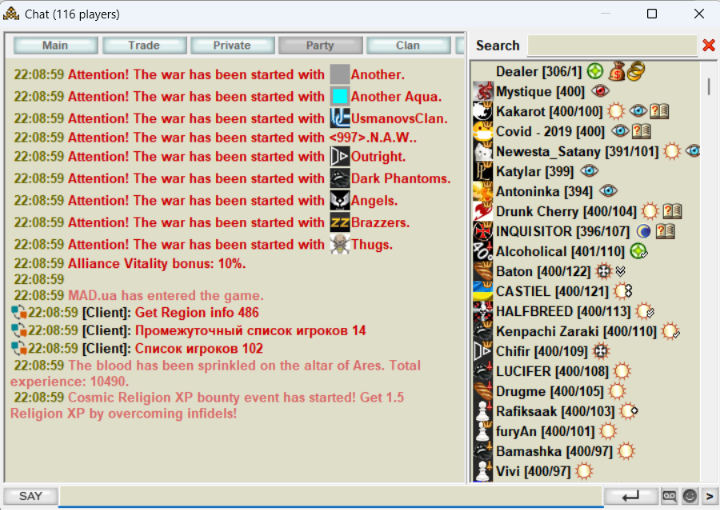
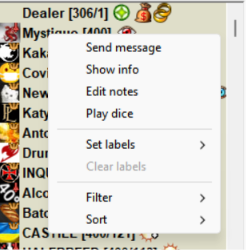
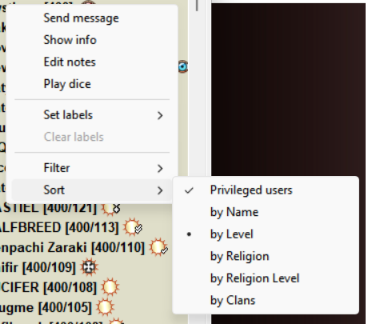
Right-click to open the context menu
- "View info" loads the site page about the selected character: nick, level, clan and religion, avatar, gifts, bind location, worn gear, personal notes, and so on;
- "Edit notes" opens a window where you can write a note about the character;
- "Play dice" sends the selected character an invitation to play dice
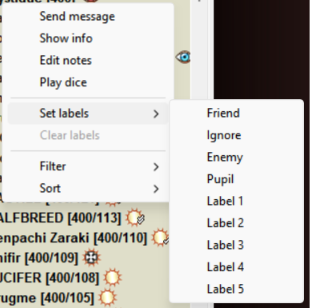
- "Set labels" opens a window with "Friend", "Enemy", "Ignore", "Student", "Label #" (you can change their color and name in Options). They put the character in a group: "Friends" (green), "Enemies" (red) and "Ignore" (grey — do not accept private messages from that character);
- "Clear labels" removes the labels you set.
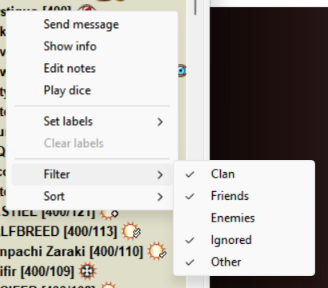
- "Filter" lets you choose which player groups to show and which to hide.
{{page>Инвентарь}}